

LifeStation Review 2026: Best for Caregivers
Our testers enjoyed LifeStation’s easier setup and low learning curve, making it a good option for caregivers and first-time medical alert system users alike.

- LifeStation medical alert systems are user-friendly and easy to wear. All models feature monitoring center response times of less than one minute.
- Products in the LifeStation medical alert family range from $37–$51 per month. Add-ons for fall detection or device replacement cost an extra $8–$16 each.
- LifeStation medical alert devices don’t have an app, but do sync with Amazon Alexa—a rarity for medical alert systems.
- An automated assistant answers when you press the call button, which may be stressful immediately after a fall.
At NCOA, we take the time to research, test, and recommend products that aim to help you live a healthier life. We’ve spent more than 3,000 hours researching medical alert systems to give you the most accurate product reviews. To find the best medical alert systems, we:
- Consulted with doctors and licensed adult caregivers who specialize in working with older adults
- Put more than 35 devices through a series of 16 different tests at our in-house lab
- Mystery shopped more than 15 brands
- Surveyed more than 1,000 medical alert system users and caregivers
- Interviewed experts on older adults falls risk
- Worked with older adults to test medical alert systems and get their opinion
- Read thousands of verified customer reviews
We’re constantly testing new medical alert systems to give you the most accurate and up-to-date recommendations. Read more about our medical alert system review methodology.
A medical alert system (MAS) can provide a sense of independence, preparedness, and safety. A large majority (74%) of our survey respondents reported buying a medical alert system because they or someone they care for had a fall or health emergency.1 LifeStation ranked among our best medical alert systems, and this LifeStation review will walk you through how it earned that distinction.
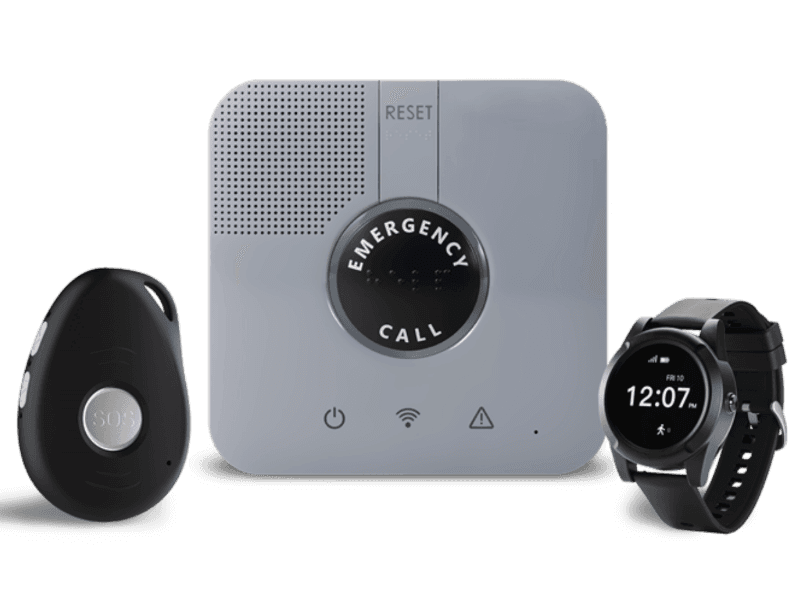
The LifeStation medical alert system comes in four models—the LifeStation Sidekick, LifeStation Sidekick Home, LifeStation Smart, and the Pearl. To help you decide which one might be right for you, we'll examine pricing, features, and how each LifeStation model held up under testing.
LifeStation
- Ready for immediate use
- Multiple wearable options
- Fall detection available
Why we recommend LifeStation
We recommend LifeStation due to its prompt response times, quick setup, and ease of use. That last factor may be the most important, according to Tina Sadarangani, ANP-C, GNP-BC, PhD, RN, a board-certified geriatric nurse practitioner and creator of The Enlightened Caregiver. When choosing a medical alert system for an older adult, Sadarangani recommends simple, easy-to-use devices. “The system should fit naturally into daily routines and not feel stigmatizing or complicated,” she said, citing features like reliable connectivity, clear audio, and minimal steps.
Devices in the LifeStation medical alert system family are all immediately ready to use after charging. Our testers noted a nearly painless setup for all four models.
LifeStation is high-tech without being high-maintenance. The LifeStation medical alert system can sync with Amazon Alexa. The LifeStation Sidekick Smart looks like many other active brands on the market, featuring a weather app, pedometer, and heart rate monitor.
LifeStation’s wearability and ease of use can give wearers a sense of agency. The easy setup means little to no reliance on a tech-savvy caregiver. LifeStation’s whole family of wearables goes where you go—even if that’s just around your own home.
“Independence isn’t just about doing things on your own; it’s about having confidence and control over your daily life. Safety is what makes that possible,” says Sadarangani. Our survey results support that. When given a free-response question about how having a medical alert system made them feel, 26% of respondents chose the word “safe.”1
When older adults feel safe in their environment, they’re more likely to stay active, engaged, and socially connected. Without safety, independence becomes fragile and often short-lived.”
—Tina Sadarangani, PhD
Comparing LifeStation devices
| Comparison Features | ||||
|---|---|---|---|---|
| Max. battery life | N/A |
120 hours |
24 hours |
72 hours |
| Fall detection | Yes* |
Yes* |
Yes* |
Yes* |
| GPS tracking | No |
Yes |
Yes |
Yes |
| Standout feature | Range of 1,300 sq. ft. |
Waterproof |
Includes heart rate monitor, weather forecast, and 2-way communication with emergency services |
Water-resistant |
*At additional cost
LifeStation reviews
Sidekick Home: For at-home peace of mind
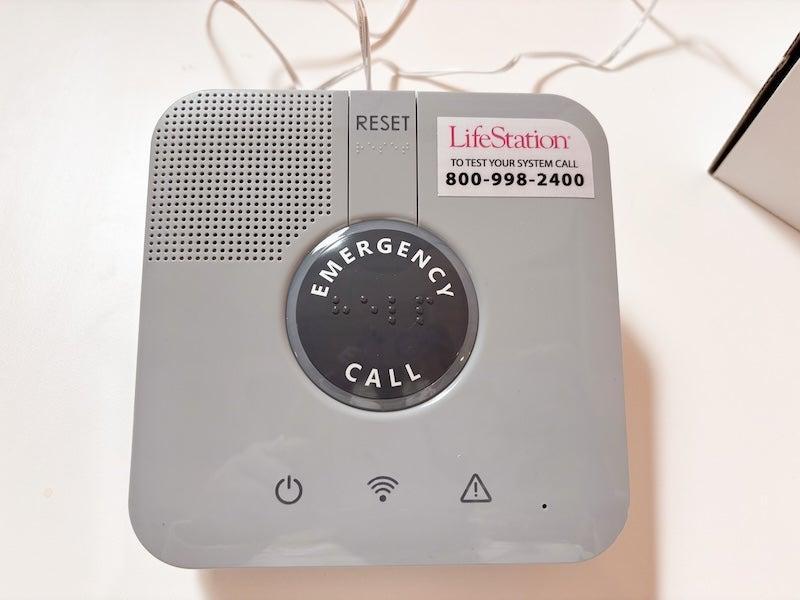
The Sidekick Home is the home-only base unit in the LifeStation medical alert system family. The base comes with a wearable button that can be worn on the wrist or as a necklace. It has a range of 1,300 feet—an impressive distance for a home medical alert system. You can report falls from anywhere in most homes, and even from porches, patios, yards, and mailboxes.
The LifeStation Sidekick Home works nearly immediately. There was one minor setup hiccup due only to our testing location, not the LifeStation gear itself. “I had to move it to an area with better coverage,” said one tester. “But once it was connected, it was easy.” The testers awarded the LifeStation Home 4/5 for ease of installation.
Sidekick Home
- Straightforward device pairing
- Light and discreet necklace
- Prompt, kind monitoring center responders
- Device type: At-home
- Fall detection: Yes, for an additional fee
- Max. battery life: 24 hours
- GPS tracking: No
- Caregiver alerts: Yes
- Connection type: LTE
Pros
- Arrives ready to use
- 27-second response time
- Waterproof necklace weighs less than half an ounce.
- Available with a landline or a cellular connection
Cons
- No way to cancel accidental calls
- No two-way talk on accessories
- Cell service connection can be spotty at first
What’s different about the LifeStation Sidekick Home
Nearly half of our survey respondents wear their medical alert system around their necks, so the LifeStation Sidekick Home is favored for its lightweight design.1 Our testers appreciated how compact the LifeStation Sidekick Home’s necklace is, weighing less than half an ounce. But like most home devices, you’ll need to talk with the response center through the base unit, so you’ll want to make sure you set it up in a central location.
All LifeStation devices include the brand’s AlertMessage service, which sends email alerts to chosen caregivers to update them on everything from an emergency to a user test. LifeStation also has a “Hold The Line” promise, under which, if the caller chooses, LifeStation operators stay on the phone with them until help arrives.
The Sidekick: LifeStation’s classic mobile GPS device
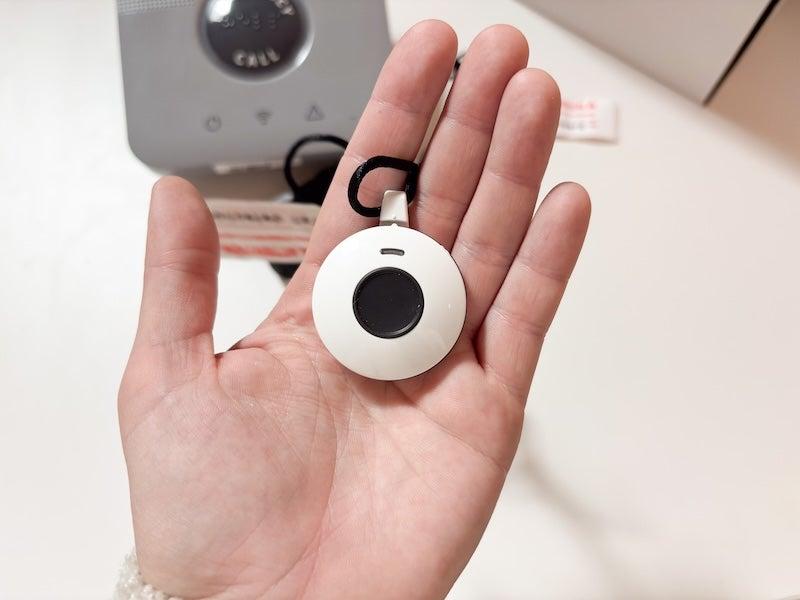
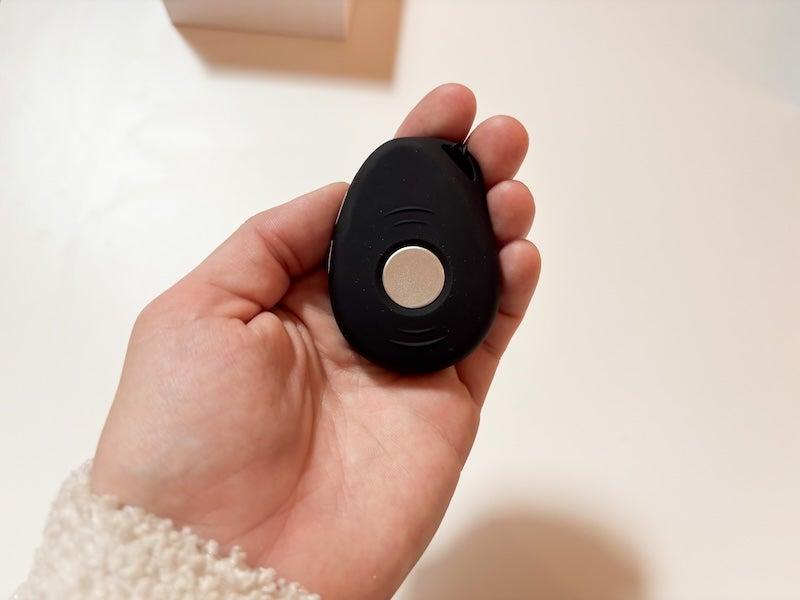
LifeStation’s Sidekick is a mobile device that uses GPS services, so it can keep up with you whether you’re at home or on the go. While the home device is limited to a range of 1,300 feet from the base station, the Sidekick can identify your location no matter where you are. It’s light, weighing only 1.4 ounces, and similar in shape to a large chicken nugget.
Sidekick
- GPS-supported
- Shower-friendly
- Longest battery life in the LifeStation family
- Device type: GPS
- Fall detection: Yes, for an additional fee
- Max. battery life: 120 hours
- GPS tracking: Yes
- Caregiver alerts: Yes
- Connection type: LTE
Pros
- Swift setup
- Long battery life
- Easy to adjust, regardless of dexterity level
Cons
- Must be worn as a necklace
- Bulky
What’s different about the LifeStation Sidekick
When it came to battery testing, the Sidekick blew its siblings out of the water, holding about five days of charge compared to the Sidekick Smart’s 24 hours. When you unbox the Sidekick, just pop it into the charging base. A red light confirms your connection and turns off once your Sidekick is ready to use. You can just slip it on and go.
Speaking of water, the Sidekick is only water-resistant (think: shower, not a bath), whereas the Sidekick Home is waterproof.
If the LifeStation Sidekick is connected to an Amazon Alexa, anyone within voice range of your Alexa setup can ask the assistant when you last pressed the help button. Your Alexa can also launch LifeStation’s Find My Loved One location service, a feature you wouldn’t need on the Sidekick Home.
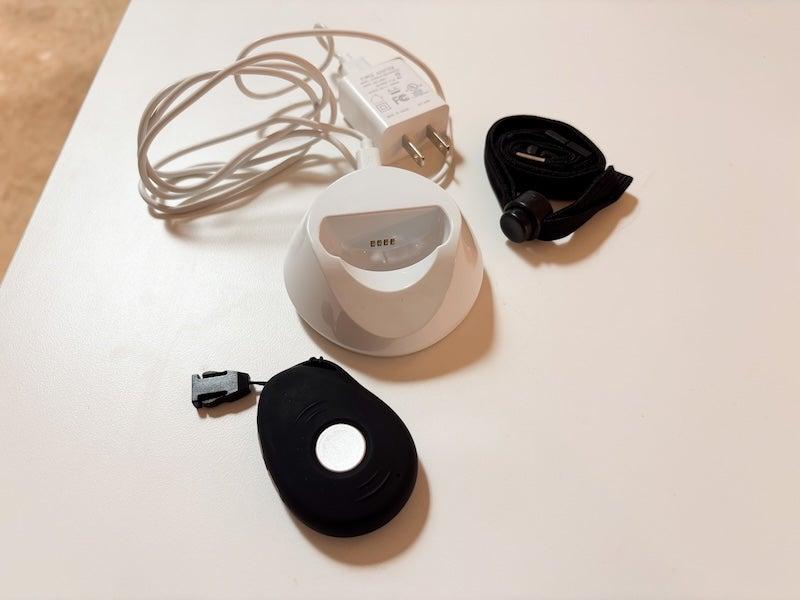
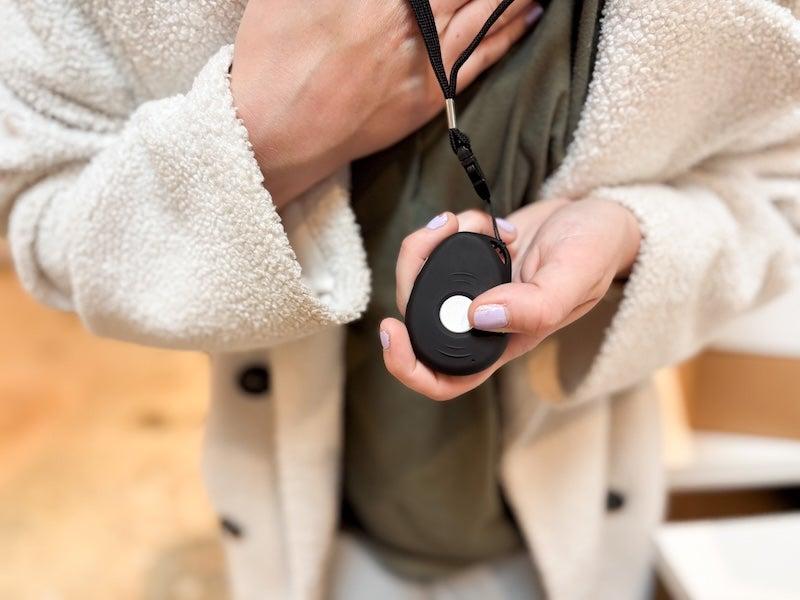
Adjusting the necklace is extremely simple. “I don’t think anyone with dexterity issues would struggle too much adjusting this,” one tester said. Instead, the struggle is in the aesthetics: The Sidekick isn’t the most discreet wearable on the MAS market, or even among other LifeStation offerings. Our testers noted the Sidekick is “bulky” and that “someone trying to hide their device probably wouldn’t enjoy wearing this day to day.”
Necklaces that disguise medical alert devices as jewelry, or those small enough to slip beneath clothing, are often a major selling point for users. Because many of our survey respondents reported that wearing a medical alert system made them feel "old" or "feeble," a less bulky or noticeable model like the LifeStation Smartwatch may be a better fit.1 The best medical alert system is one you will wear regularly.
Smart: LifeStation’s wearable medical alert watch
The LifeStation Smart is the brand’s highest-tech offering. Like other medical alert watches on the market, the GPS-powered wearable is a watch, pedometer, and heart rate monitor. It also includes a weather forecast. Our testers noted the design was “pretty contemporary,” and that the only caveat was a concern that the watch’s thick band might limit wrist mobility and affect dexterity. If you’re seeking a wrist wearable with a thinner band, and you don’t care about smartwatch features, we recommend the Medical Guardian Mini Lite.
The LifeStation Smart looks like many other smartwatches on the market, winning major points for discretion (unlike the Sidekick). Like LifeStation’s other GPS-enabled models, it has two-way talk: You can speak directly to the emergency response team through the watch, like a secret agent.
Smart Watch
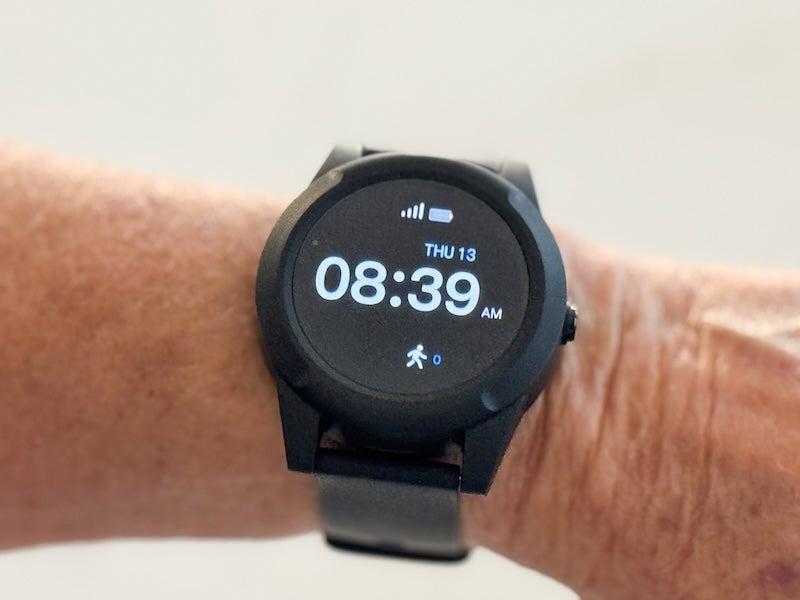
- Includes pedometer and weather app
- Can monitor heart rate
- Almost identical to standard smartwatches
- Device type: GPS Smartwatch
- Fall detection: Yes, for an additional fee
- Max. battery life: 24 hours
- GPS tracking: Yes
- Caregiver alerts: Yes
- Connection type: LTE, Wi-Fi, Bluetooth
Pros
- Wi-Fi enhanced GPS location
- Call cancellation, 2-way communication
- Water-resistant
Cons
- Thick wristband may limit movement
- Wrist-based fall detection may be less accurate
What’s different about the LifeStation Smart
The LifeStation Smartwatch has the second-fastest emergency response time behind the Pearl, and it lets you cancel your emergency call if you activate it by accident. The touchscreen and home button both allow for immediate cancellation.
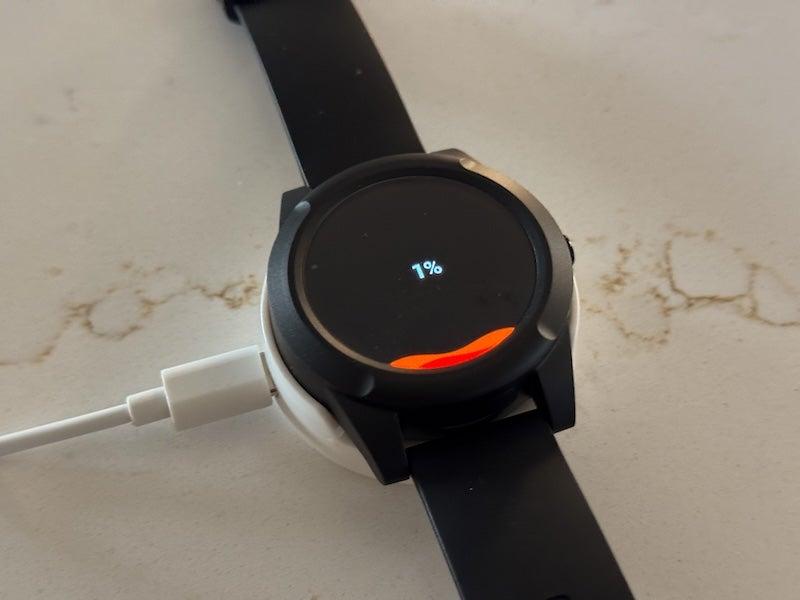
The LifeStation Smart is as easy to set up as every LifeStation device, with the added bonus of arriving fully charged. Simply unbox the Smart and put it on your wrist. If you lose the charger, there’s a good chance you already have another USB-C cable lying around the house.
Pearl: LifeStation’s smallest and lightest device
The Pearl is just as simple to open and use as the rest of the LifeStation family, earning a 5/5 with our testers. Like LifeStation’s other mobile devices, the Pearl includes call cancellation, and like the Home Sidekick and the Sidekick, you could opt to wear your Pearl as a necklace, though our testers noted it was “not the most fashionable choice” and would work better with the included belt clip.
Pearl
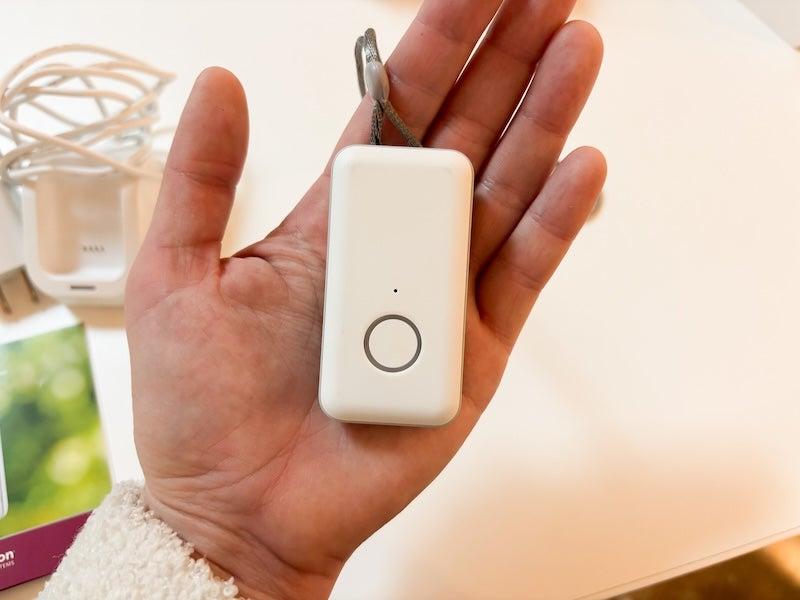
- Fastest emergency response time
- Easy-adjust necklace
- Has a test button
- Device type: GPS
- Fall detection: Yes, for an extra fee
- Max. battery life: 72 hours
- GPS tracking: Yes
- Caregiver alerts: Yes
- Connection type: LTE
Pros
- Speedy emergency services connection
- Water-resistant
- Long battery life
Cons
- Bulky
- Can’t order directly from the web
What’s different about the LifeStation Pearl?
While our testers really liked the LifeStation Pearl, it’s the brand’s most expensive device at $51 per month. For wearers seeking a discreet, GPS-enabled alert system with call cancellation, we recommend the LifeStation Sidekick Smart. If what drew you to the Pearl was its long battery life, the Sidekick offers 120 hours of charge, compared with the Pearl’s 72. If you still wish to purchase the Pearl, you’ll need to call LifeStation directly.
How much do LifeStation devices cost?
All LifeStation devices cost $100 to activate. The subscriptions range from $37–$51 per month. For an extra $3 each month, LifeStation gives you a lockbox that emergency services can use to access keys when they’re called to the home. For an extra $4 per month, you can get a bonus medical alert necklace for someone else in your home.
LifeStation devices do not come with fall detection, but for $8–$16, you can add fall detection to every device. This is separate from the protection plan (an additional $8-$16 on top of base pricing), which guarantees two help button replacements in the event of a technical or mechanical failure.
You can’t purchase fall detection by itself; it’s layered in with the protection plan. You can purchase just the protection plan for your LifeStation device, with one exception: The protection plan is included in the Sidekick Smartwatch. If you want a device that offers fall detection without requiring you purchase their protection plan, check out our review of the best medical alerts with fall detection.
Comparing the cost of LifeStation devices
| Comparison Features | Sidekick Home 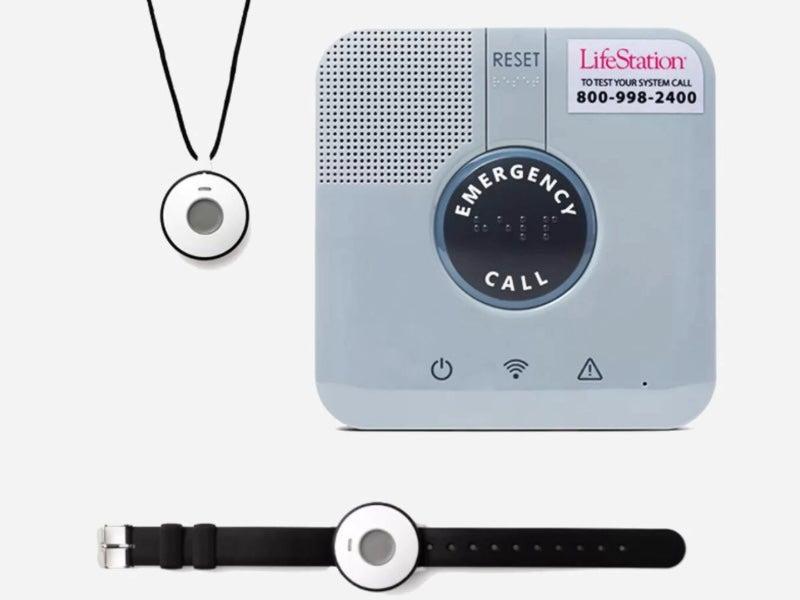 |
Sidekick 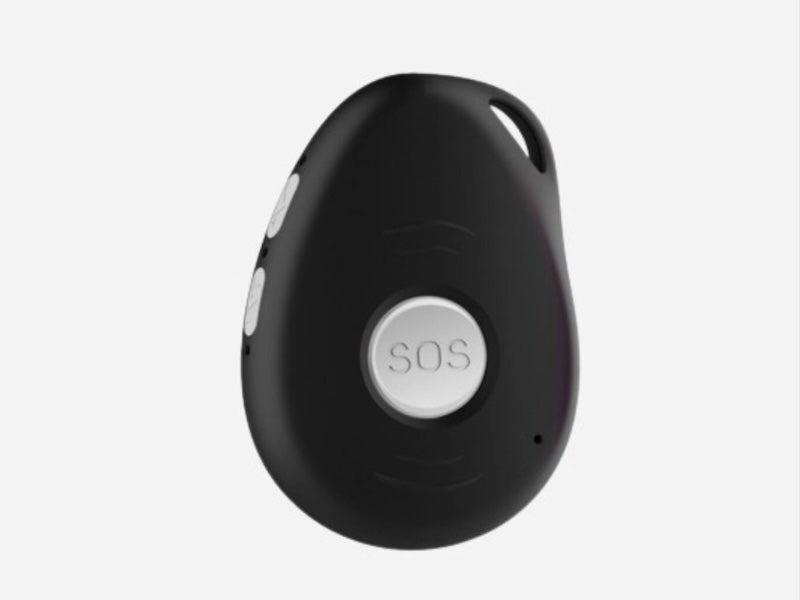 |
Sidekick Smart 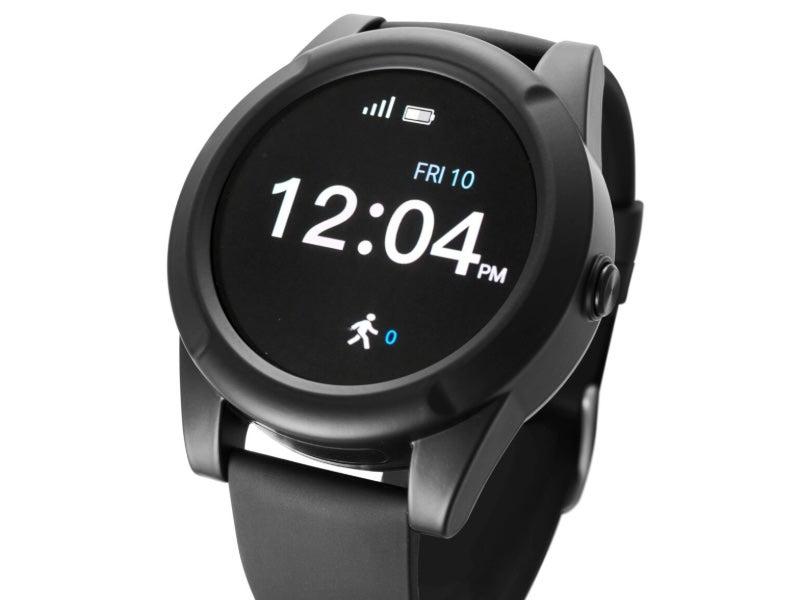 |
Pearl 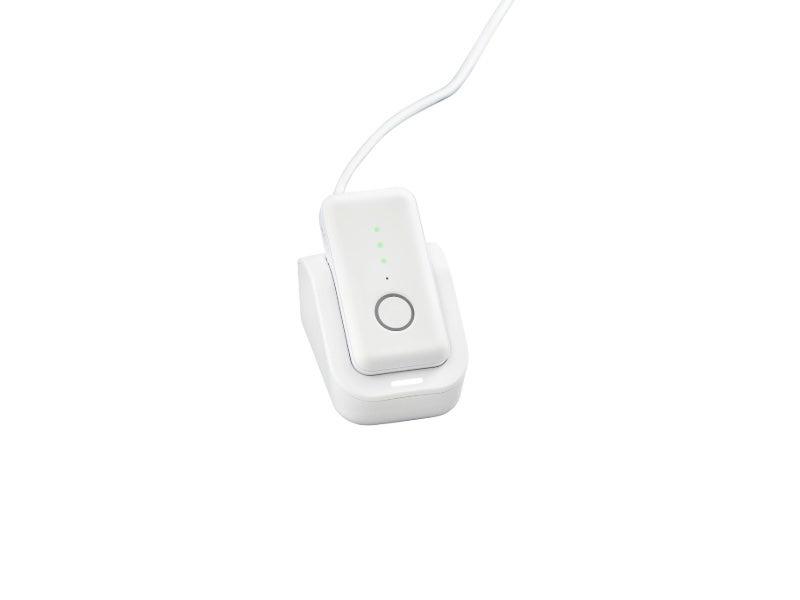 |
|---|---|---|---|---|
| Monthly Cost: | $37 |
$41 |
$49 |
$51 |
| Activation fee | $100 |
$100 |
$100 |
n/a |
| Protection plan | $8 |
$8 |
$0* |
n/a |
| Fall detection** | $16 |
$16 |
$8 |
n/a |
*The protection plan is included in the monthly cost of the Sidekick Smart
**Users need to purchase the protection plan in order to add fall detection
How to save money on LifeStation devices
If you opt for a quarterly or annual payment plan instead of a monthly plan, LifeStation ships your device for free (shipping is around $13 otherwise), and you get a free month of coverage.
If your private health care provider is a LifeStation partner, you may be eligible for coverage or discounts. LifeStation is actively courting Medicare and Medicaid partners, but original Medicare does not cover medical alert systems, and Medicaid programs (and thus their coverage) vary by state. Your Medicare Advantage plan might include MAS coverage. You might also have the option to pay for a medical alert system with your health savings account (HSA) or flexible spending account (FSA).
LifeStation accessories and options
A LifeStation review wouldn’t be complete without a rundown of the accessories. None of these come standard with the LifeStation medical alert system, but you can add any or all of them to your medical alert system.
- Fall detection: Adding fall detection to your LifeStation medical alert system device costs $8–$16 per month. Prices depend on the model you choose. See the table above for details.
- Protection plan: The protection plan is an additional $8–$16, and users need to purchase it to add fall detection. The protection plan guarantees you two help button replacements annually, or one full system replacement. The protection plan covers “normal wear and tear” but not damage caused by power surges, water, accidental breakage, or loss.
- Wall button: The Sidekick Home includes a wall button that you can place anywhere in your home.
- Lockbox: For an extra $3 per month, you can add a lockbox that holds your keys. This ensures emergency medical services can access your home in the event of a fall.
- Extra button: If more than one person lives in the home and could use a wearable help button, LifeStation lets you add another button for $4 per month.
Another perk of the LifeStation medical alert system is its ability to connect with Amazon Alexa. Not only does Alexa connection help with location services, but it might even help you convince someone who is reluctant to try a medical alert system.
When approaching someone who is unsure of medical alert systems, “reframe what it means to use a medical alert device,” advises Amanda Rudderman, fall prevention coordinator for VCU Health Trauma Center’s Injury and Violence Prevention Program. Rudderman specifically named Amazon Alexa when discussing adoption tactics.
“There could be other strategies for preparedness for a medical emergency that are different from what [the person in your care] expects a medical alert device to be. . . things like using an Alexa system or other ways to call out for help in addition to a pendant around their neck," she says. "Have a couple options so that the person who is going to need the medical alert device gets to make the choice.”
The LifeStation user experience
Our testers voted LifeStation’s user experience 9/10, coming in just behind Bay Alarm as one of the most user-friendly medical alert systems we’ve tested.
LifeStation medical alert systems require very little setup, and the packaging is designed for a range of dexterity levels. Our testers report “intuitive” setup and clear user manuals. The lowest ease-of-setup score any LifeStation device received was 4.5/5.
Most LifeStation devices require daily charging and can hold said charge for about 24 hours. The Sidekick, which lost points in the wearability department, makes up for it with battery life, clocking in at five days on a single charge. The Sidekick Home was a little tricky to remove from its charger. Notes one tester: “You have to remove the back part, which was hard for me, and then unplug the cord.”
While our testers were slightly disappointed that LifeStation’s emergency calls are initially answered by an automated voice, they reported that the voice understood them clearly and the transfer to a human being was decently swift. “The lack of human interaction may make folks wary if they’re truly in a situation that needs reassurance from a real person,” one tester noted.
The wearables come with easy-adjust necklaces our testers likened to a bolo tie. You don’t need to fiddle with the necklace after initial setup, unless you’re changing it to a wristband (Sidekick Home) or belt clip (Pearl). The Sidekick cannot be worn on a belt or wrist, and the Sidekick Smart must remain a wristband. If you choose a wristband or watch, just note that research shows fall detection can be less accurate from the wrist because of how frequently we move our hands around.2
LifeStation customer service and warranty
LifeStation’s customer service hours are Monday through Saturday, 9 to 5 p.m., not to be confused with LifeStation’s monitoring, which is available 24/7. LifeStation’s protection plan (which you have to opt into unless your device is the Sidekick Smart) functions as a warranty, allowing up to two free device replacements a year. If you’re unhappy with your LifeStation device, you can return it for a refund within the first 30 days, even without opting into the protection plan.
Are LifeStation devices right for you?
We can fall at any age. As we age, our body does change, and it makes the consequences of a fall—the injury that could happen because of a fall—a little more dire.”
— Amanda Rudderman, MSW
Studies show falls are common and can result in serious injuries, especially for adults 65 and older. In 2020, for example, the Centers for Disease Control and Prevention reported 950,000 fall-related hospitalizations in older adults, and 32,000 deadly falls.3 Medical alert systems are a popular way to maintain independence while also being prepared in case of a fall.
So what might make LifeStation the right medical alert system? Easy adoption. We voted LifeStation the best medical alert system for caregivers for its ease of use and simple setup. LifeStation’s devices are plug-and-play. They can fit into your routine as long as you don’t mind that the GPS necklaces may feel bulky.
This LifeStation review looked at four different models. Before you choose a LifeStation medical alert system, ask yourself:
- Can I commit to the additional monthly cost of adding fall detection?
- Will it bother me that an automated emergency response answers before transferring me to a human?
- How subtle do I need my GPS tracker and/or help button to be?
- Will the thick band on the LifeStation watch be cumbersome?
- Is the Amazon Alexa connectivity a perk?
Frequently asked questions
Do you need a landline to use LifeStation?
No, you don’t need a landline to set up your LifeStation alert system. The LifeStation Sidekick Home offers both landline and cellular connection options. The mobile devices function on 4G LTE.
What is the difference between LifeStation and Life Alert?
LifeAlert is one of the most recognizable MAS brands, but our team does not recommend it. LifeAlert can be purchased only over the phone and has a mandatory three-year contract. The range for its home unit is 800 feet. LifeStation, whose home unit range is 1,300 feet, is available for purchase online, and you can pay monthly without committing to a three-year contract. LifeAlert pricing is not transparent. But LifeStation pricing can be found in this LifeStation review and on LifeStation’s own site.
Will Medicare cover a LifeStation medical alert?
No, Medicare does not cover medical alert systems, including LifeStation. And if you’re already enrolled in Medicare, you can’t contribute to your HSA, which might otherwise have covered a medical alert system.
How much does LifeStation cost per month?
LifeStation’s monthly cost depends on the model you choose and whether you add fall detection or other add-ons (device protection, EMS lockbox, etc.). The most affordable device is the LifeStation Sidekick Home with no add-ons ($37/month). The most expensive is a LifeStation Sidekick Smart with fall detection, protection plan, and a lockbox add-on ($68/month). All models feature a one-time activation fee of $100.
Questions? Email us at reviewsteam@ncoa.org.