

Related Topics
Have you noticed you’re holding your iPhone farther away to read a text message, or squinting to make out the words on your screen? You’re in good company. While about 78% of Americans age 65+ own a smartphone,1 many find that reading small text becomes more challenging with age. Fortunately, you don’t have to struggle: your iPhone has accessibility features that can make text and icons much easier to see.
One of the quickest ways to improve readability on your iPhone is to increase the font size. Our guide walks you through how to make the font bigger and other ways to improve your iPhone experience.
Snapshot: Improve Readability on Your iPhone
|
If you want to... |
Try this |
|
Make text bigger |
Text Size |
|
Make text much bigger |
Larger Accessibility Sizes |
|
Make letters easier to see |
Bold Text |
|
Enlarge icons and buttons |
Display Zoom |
|
Read text without straining |
Read & Speak (also called Spoken Content) |
|
Improve screen contrast |
Increase Contrast |
|
Reduce glare |
Night Shift |
|
Make menus easier to read |
Reduce Transparency |
Why is it getting harder to read my phone as I get older?
It's common for reading a smartphone to get a bit trickier over time. That’s because as you age, your eyes naturally become less able to focus on close-up objects (a condition called presbyopia).
You may also need more light or have greater sensitivity to glare. But simple tweaks, like increasing the font size on your iPhone or turning on bold text, can make all the difference.
How do I change the font size on my iPhone?
Changing the font size only takes a moment. Follow these steps:
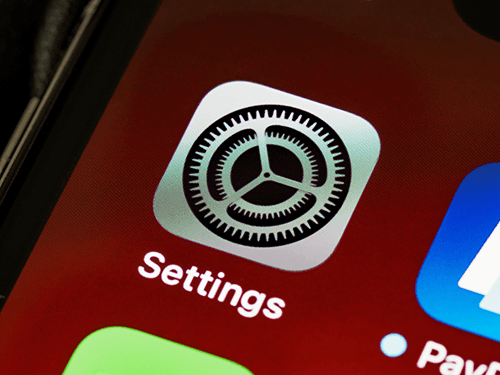
- Open the Settings app on your iPhone.
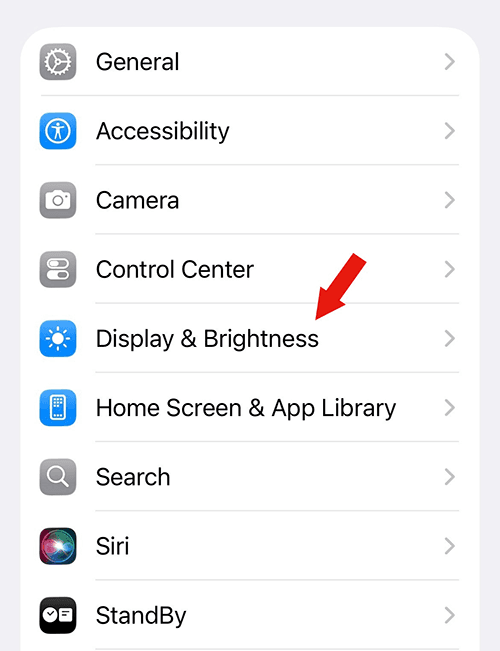
- Tap Display & Brightness.
- Tap Text Size.
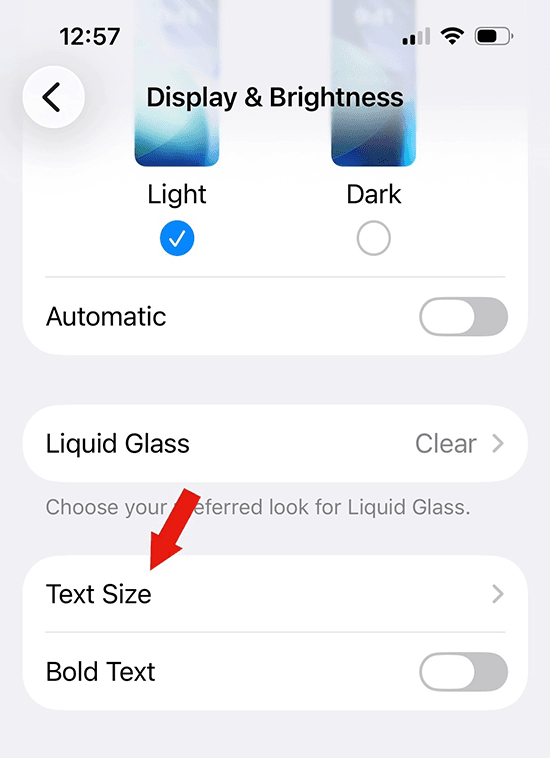
- Drag the slider to the right to make the text larger (or to the left to make it smaller).
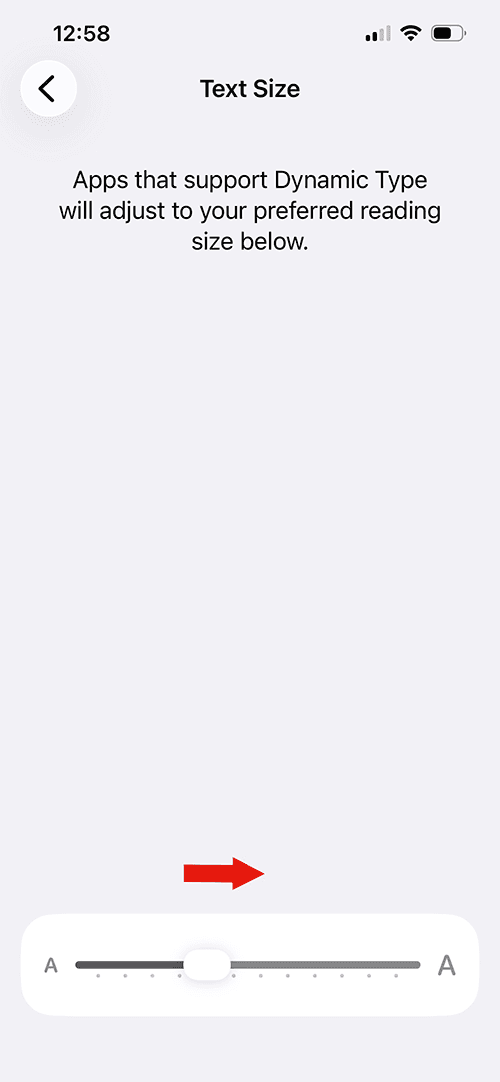
- Open an app, such as Messages or Mail, to see how the new text size looks. Then, adjust as needed.
If the text still feels too small, don't worry. You can make it even larger using Accessibility settings (more on that later).
How to change text size in the Control Center
You can also adjust text size without opening the Settings app. Try this:
- Open the Control Center by swiping down from the top-right corner of the screen (or swipe up from the bottom on older iPhones).
- Tap the Text Size button (marked with "AA").
- Choose whether you want the change to apply to the current app only or all apps.
- Move the slider up or down to adjust the text size.
Don’t see the Text Size (AA) control in the Control Center? You can manually add it in a few quick steps:
- With the Control Center open, touch and hold an empty area until the controls begin to “glow” or jiggle.
- Tap Add a Control.
- Search for Text Size or scroll through the list.
- Tap Text Size (AA) to add it to the Control Center.
- Tap anywhere outside the Control Center to save your changes.
This is a good option if you want larger text in one app (such as Mail or Safari), but don't want to change the size across your entire phone.
How to make text even bigger with larger accessibility sizes
If the standard Text Size setting isn't big enough for you, your iPhone lets you increase the font size even more. Here’s what to do:
- Open Settings on your iPhone.
- Tap Accessibility.
- Tap Display & Text Size.
- Tap Larger Text.
- Turn on Larger Accessibility Sizes.
- Drag the slider until the text reaches a comfortable size.
This iPhone accessibility setting allows text to become significantly larger than the standard Text Size option. It's helpful if you have low vision or find yourself struggling to read content like emails, websites, or text messages.
Display Zoom
Display Zoom enlarges not only text, but also icons, buttons, and other on-screen elements. It's a great feature if you want everything on your screen (not just text) to appear bigger.
To enable this feature:
- Open Settings on your iPhone.
- Tap Display & Brightness.
- Tap Display Zoom.
- Select Larger Text.
- Tap Done (or the checkmark icon) in the top-right corner.
- Tap Use Zoomed to confirm. Your phone will briefly restart or refresh to apply the larger layout.
Other iPhone settings that make text easier to read
Making the font larger is just one way to improve readability on your iPhone. The settings below can make words easier to see and reduce eye strain. You can find them under Settings > Accessibility > Display & Text Size.
To turn on each iPhone accessibility feature, tap the toggle button. The slider will shift to the right, and the button background will turn green. To turn them off, tap the toggle button again.
Bold Text
Bold Text makes letters thicker and easier to distinguish. This can help if you have trouble reading lighter fonts.
Increase Contrast
Increasing contrast makes text stand out more clearly from the background by reducing transparency and making colors more distinct.
Reduce Transparency
This setting removes some of the translucent effects used by the iPhone’s operating system. It helps make menus and buttons easier to see.
Auto-Brightness
Adjusting brightness can help ease the strain on your eyes and make text on your phone easier to read, especially in dim lighting.
Night Shift
Night Shift automatically shifts your iPhone display to warmer colors in the evening, which some people find easier on their eyes. To enable it:
- Open the Settings app.
- Tap Display & Brightness.
- Tap Night Shift.
- Turn on Scheduled to have Night Shift turn on automatically. You can also tap Manually Enable Until Tomorrow to use it right away.
- Use the Color Temperature slider to choose a warmer or cooler display.
Other accessibility features older adults may find helpful
Wondering about special iPhone settings for seniors? You’ll be glad to know your phone has many tools that can make everyday tasks easier.
Here are just a few:
- VoiceOver: Reads aloud what's on your screen.
- Read & Speak: Reads selected text, webpages, or the entire screen aloud. (May also be called Spoken Content, depending on the software your iPhone is using.)
- Zoom: Magnifies any part of the screen.
- Magnifier: Uses your iPhone's camera as a digital magnifying glass.
- Live Speech: Lets you type messages that your iPhone speaks aloud.
- AssistiveTouch: Makes it easier to use gestures if you have limited hand mobility.
- Sound Recognition: Alerts you when your iPhone hears sounds like a smoke alarm or doorbell.
- Voice Control: Operate your iPhone using only your voice.
Tips for making your iPhone easier to use
Beyond taking advantage of your iPhone’s accessibility settings, there are a few other ways to make your device even more user-friendly:
- Keep your iPhone updated so you have the latest accessibility improvements and security updates.
- Use the search bar in the Settings app to find features quickly.
- Charge your phone nightly as part of your evening or bedtime routine. That way, you’ll worry less about running out of battery when you need it most.
- Increase the volume and choose a ringtone that's easy to hear, even when your phone is in a purse or in another room.
- Use Siri (Apple’s virtual assistant) to make calls, send texts, set reminders, and answer questions without using your hands.
- Set up Medical ID and emergency contacts so first responders can access your important health information, if needed.
- Use Face ID or Touch ID to unlock your phone quickly without having to remember a password.
- Use Find My iPhone, so if you misplace your phone, you can locate it, play a sound, or lock it remotely.
Frequently asked questions (FAQ)
Why can't I increase the font size in some apps?
Not every app supports Dynamic Type, which is Apple's feature for adjustable text sizes. Some apps use fixed font sizes, which means changing your iPhone's text size may have little or no effect.
How do I make everything on my iPhone screen bigger?
Turn on Display Zoom to enlarge icons, buttons, menus, and other interface elements. You can also enable Larger Accessibility Sizes to make the font even bigger on your iPhone.
Can you make text bigger on non-iPhones?
Yes. Most Android phones also let you increase text size and display size through their Accessibility or Display settings. But the exact steps to make the font bigger vary by manufacturer.
Where do I find Settings?
Look for the gray Settings app with the gear icon on your Home Screen or in your App Library. You can also swipe down from the middle of the Home Screen to open Search, then type "Settings" in the search bar.
How do I update my iPhone?
To update your iPhone, follow these steps:
- Open Settings.
- Tap General, then Software Update.
- If an update is available, tap Update Now (or Download and Install on some versions of iOS).
Follow the on-screen instructions and keep your iPhone connected to Wi-Fi and a charger until the update is finished. Tip: You can turn on Automatic Updates, which permits your iPhone to install new software automatically (usually overnight while it's charging).
Want to learn more about smartphones for older adults? Discover the best cell phone plans, including the best phone plans for two people.
Source
1. Pew Research Center. Mobile Fact Sheet. Nov. 20, 2025. Found on the internet at https://www.pewresearch.org/internet/fact-sheet/mobile/