
How to Create Your Free IBM SkillsBuild Account
2 min read
Technology is changing the way we live and work—but it's never too late to learn something new. Whether you want to build your digital confidence, strengthen workplace skills, or explore new career opportunities, getting started is easier than you might think.
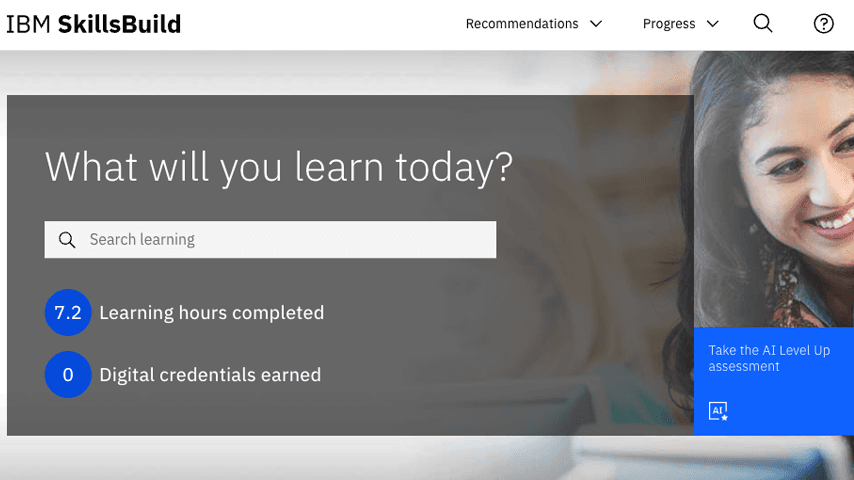
IBM SkillsBuild offers a free, self-paced courses that can help you build digital and professionals skills and earn credentials. When you sign up for a course or learning activity through NCOA’s partnership with IBM, you will be directed to create an account. This step must be completed before access course content.
Step 1: Start with the NCOA Registration Link
Always begin by clicking the IBM SkillsBuild registration link provided by NCOA. Whether you find it in an email, on our website, or in another NCOA resource, using that link ensures you're directed to the correct course, webinar, or learning activity.
Step 2: Choose Your Cookie Preferences
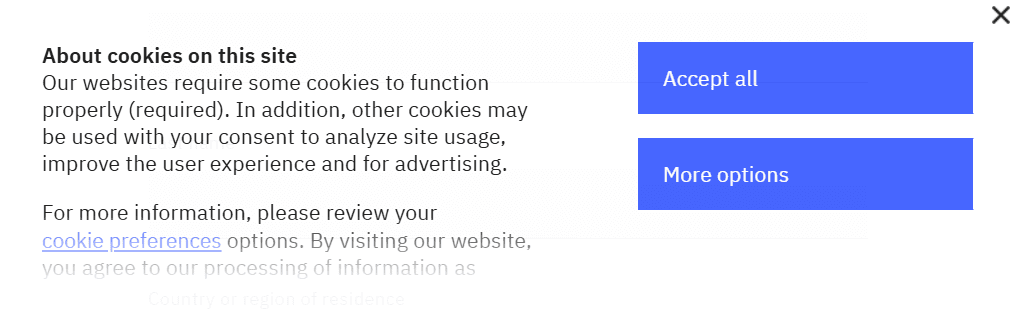
You'll see a cookie message when you first arrive.
You can either select "Accept All" to continue or click "More Options" to learn about the different types of cookies and choose your preferences before proceeding.
There are three types of cookies:
- Required cookies provide basic website functionality, including language selection.
- Functional cookies remember your preferences and settings.
- Personalization cookies help tailor content and advertising to your interests.
Step 3: Choose How You Want to Sign Up
You have two options:
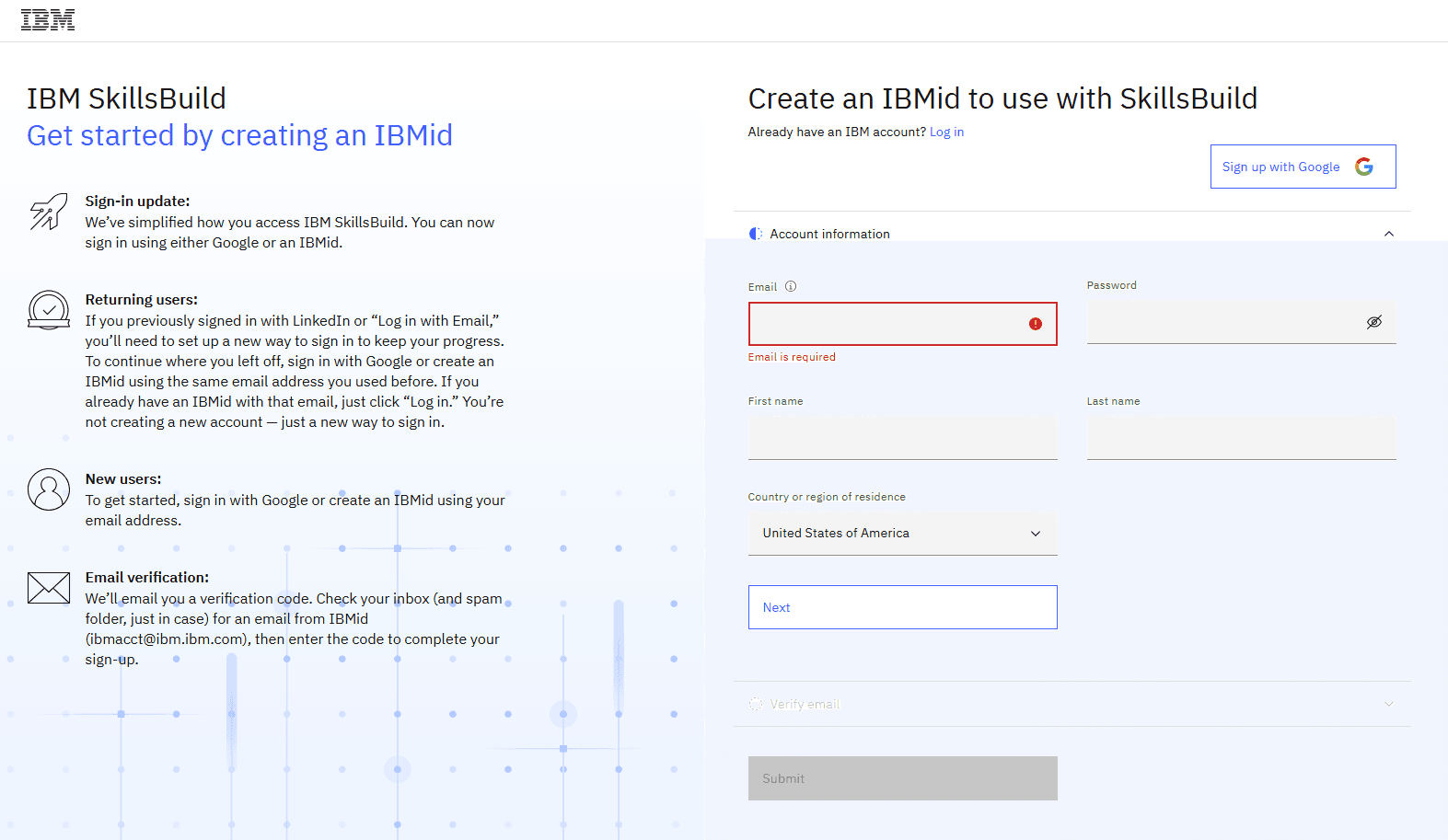
- Option 1 (NCOA's recommendation): Sign up with Google (or a Gmail account). On the next screen, you'll see a "Sign Up with Google" button in the upper-right corner (shown below in the next step). If you already have a Gmail account, this is the quickest way to create your IBM SkillsBuild account. Simply click "Sign Up with Google" and sign in with your Google account—you can skip manually entering your personal information. If you don't have a Gmail account, you can create one first by following our how-to guide on how to create a Gmail account.
- Option 2: Create an account using any email address.
Step 4: Create Your IBM SkillsBuild Account
If you chose to create your account with an email address instead of Gmail, you'll be asked to enter the following information (as seen below):
- First name
- Last name
- Country
- Email address
- Password
When choosing a password, it must:
- Be 12 or more characters
- Include an uppercase letter
- Include a lowercase letter
- Include a number
Tip: A short phrase that's easy for you to remember is often easier than a complicated password.
Step 5: Verify Your Email
Check your inbox for an email from IBM with the subject line, "Verify your email address". The email will come from ibmacct@iam.ibm.com and contain a 7-digit verification code.
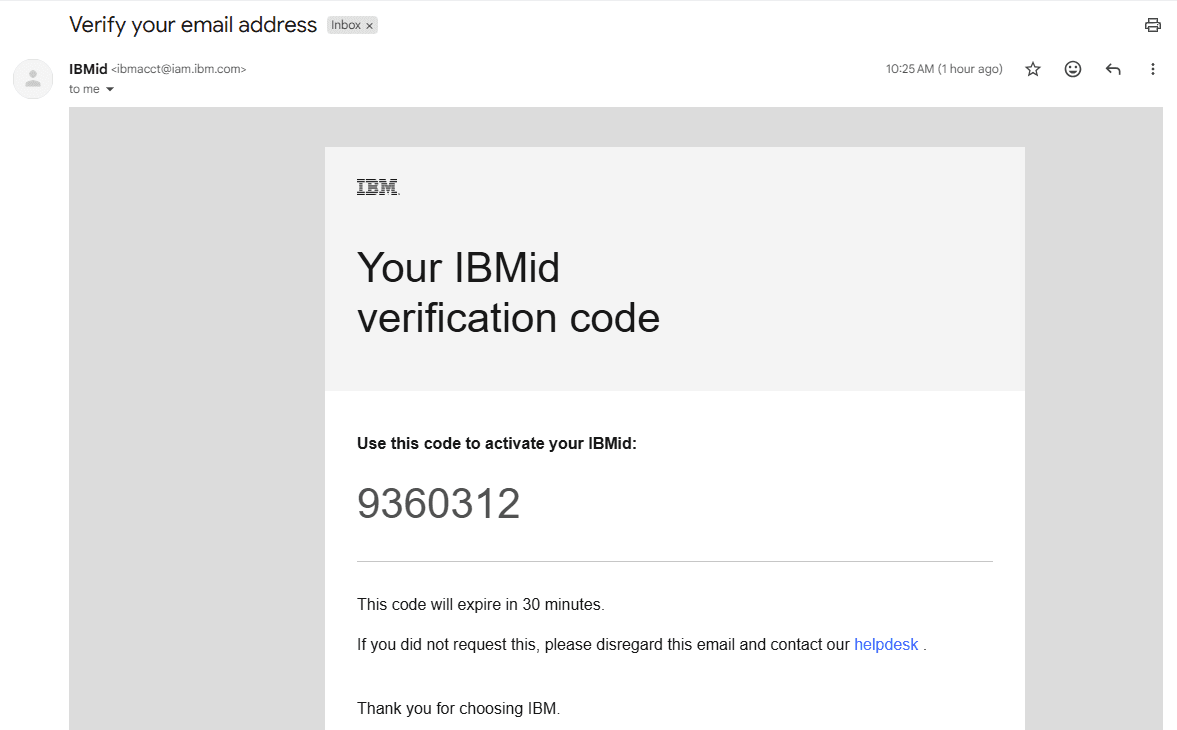
Open the email and copy the 7-digit verification code. The code expires after 30 minutes, so be sure to complete this step soon after receiving it.
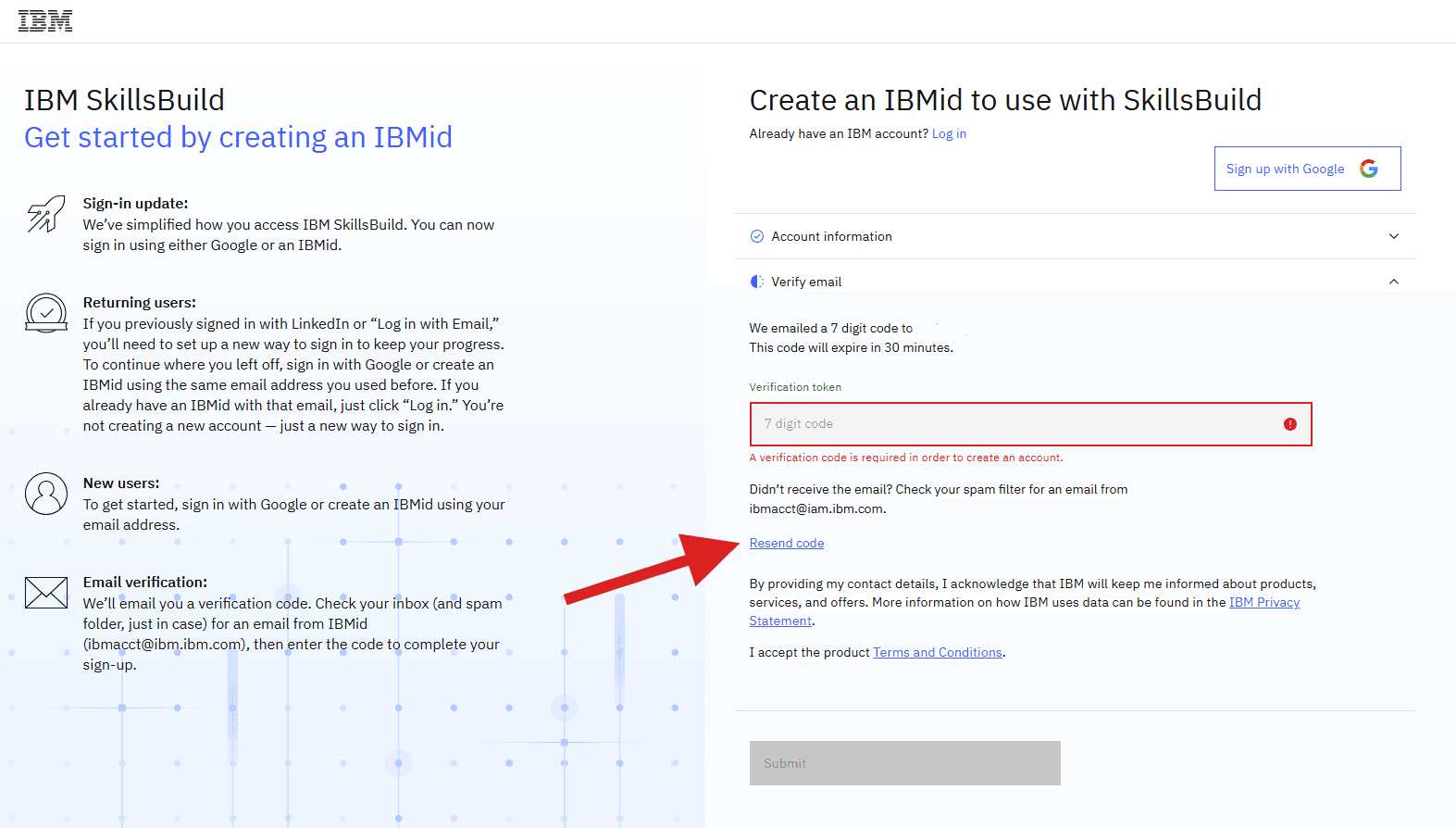
Return to IBM SkillsBuild, enter the code into the Verification Token field, and click the blue Submit button to complete your account setup (as seen below).
Can't Find the Verification Email?
If you do not see the email:
- Check your spam or junk folders for an email from ibmacct@iam.ibm.com.
- Confirm that you entered the correct email address.
- Select the Resend Code link below the Verification Token field to request a new verification code (see the screenshot above, highlighted by the red arrow).
You're Ready to Learn!
Once your email is verified, you'll return to IBM SkillsBuild where you can:
- Enroll in a course, webinar, or learning activity
- Begin learning
- Earn free credentials
Have questions about creating your IBM SkillsBuild account? Email powering.possibilities@ncoa.org.
Grow Your Digital Confidence
Ready to grow your skills and stay competitive? Explore free, self-paced tech and career courses designed to help you build digital confidence and strengthen your professional edge — at your pace, on your schedule.